myYam

Widgets

The house on your Home Screen

Eleven widgets, all in your look's colours. Touch and hold the Home Screen, tap Edit › Add Widget, choose myYam, then pick a size. To change a widget's options, touch and hold it and tap Edit Widget.

Lights

A room's or a zone's lights: how many are on, and one button to turn them all on or off.
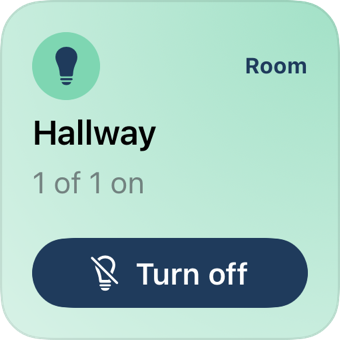
The Lights widget, small
Sizes
Small, medium; Lock Screen round and rectangular
Options
Home, and Room: any room or zone (House, Upstairs, Downstairs, Outside). It starts on the first room with a light on, and the widget shows the room's name.
Zones

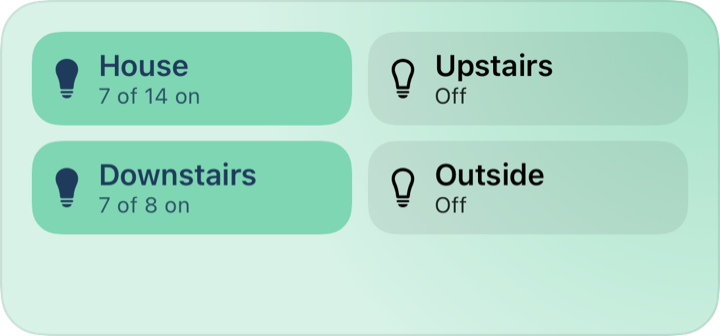
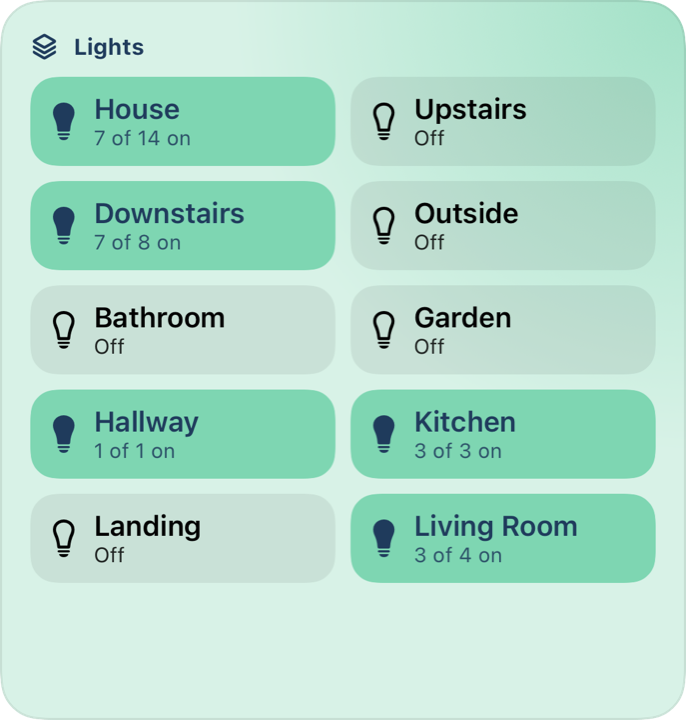
Your zones, a switch each, showing how many lights are on. The larger sizes add your rooms as well.

The Zones widget, mediumThe Zones widget, large
Sizes
Medium (4), large (up to 10), extra large on iPad (up to 16)
Options
Home. Tap a zone or room to turn its lights on or off.

Scenes

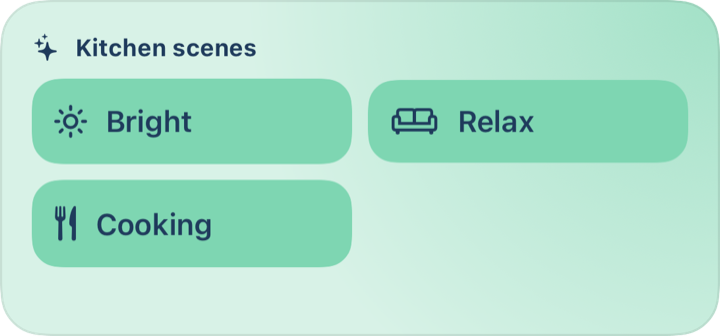
A room's or a zone's scenes, one tap each.

The Scenes widget, medium
Sizes
Medium (up to 4), large (up to 10)
Options
Home, and Room: any room or zone that has scenes.

Media

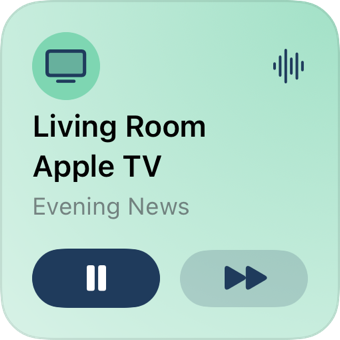
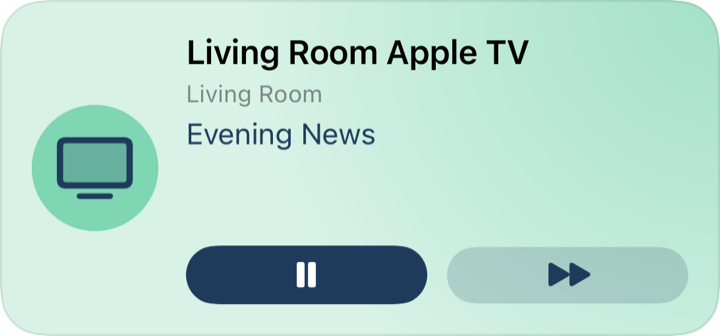
What's playing on a TV or speaker, with play/pause and skip.

The Media widget, smallThe Media widget, medium
Sizes
Small, medium; Lock Screen rectangular
Options
Home, and TV or speaker: any of your media players. Left empty, it follows whatever is playing.

Heating

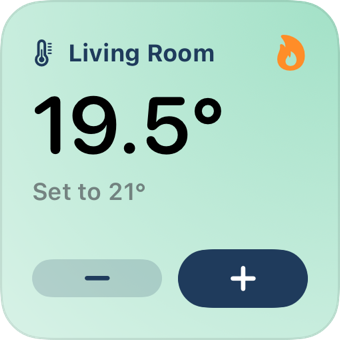
A room's temperature and what it's set to, with − and + to change it a step at a time.

The Heating widget, small
Sizes
Small; Lock Screen round and rectangular
Options
Home, and Thermostat: any heating or air conditioning in Home Assistant.

Security

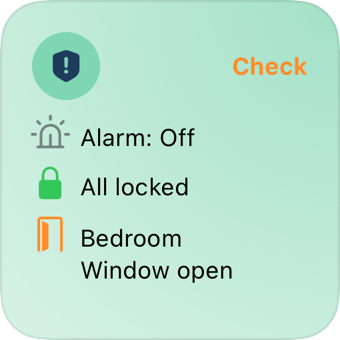
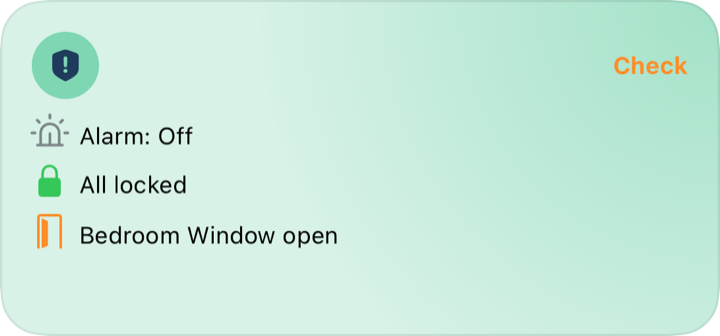
The alarm, the locks and any door or window left open. It says Check when something needs a look.

The Security widget, smallThe Security widget, medium
Sizes
Small, medium; Lock Screen rectangular and inline
Options
Home.

Laundry

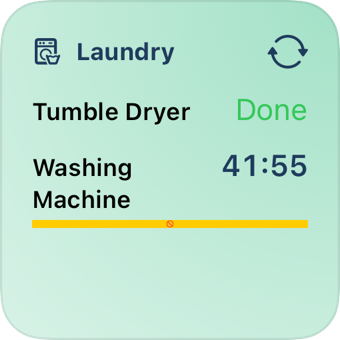
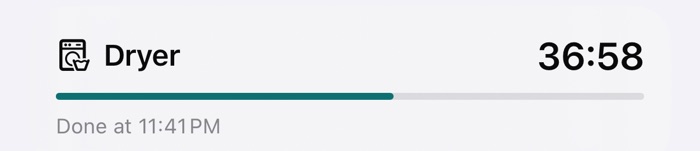
When the washing machine and tumble dryer finish, counting down to the minute, with a bar for the cycle.

The Laundry widget, small
Sizes
Small, medium; Lock Screen rectangular and inline
Options
Home, and Appliances: the washer, the dryer or both. Left empty, it shows both.

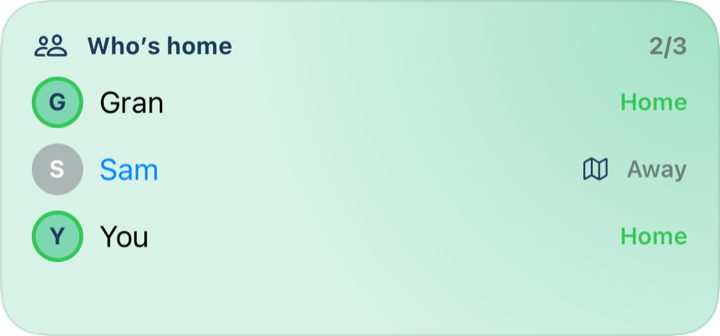
Who's home

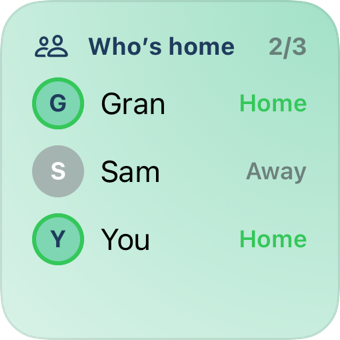
Who's in and who's out, with the picture each person chose in the app. Tap someone who's out to see where they are on a map.

The Who's home widget, smallThe Who's home widget, medium
Sizes
Small (3 people), medium (4, with a map link), large (up to 8); Lock Screen inline
Options
Home. Pictures come from Settings › People in the app.

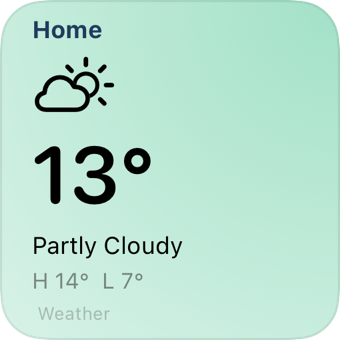
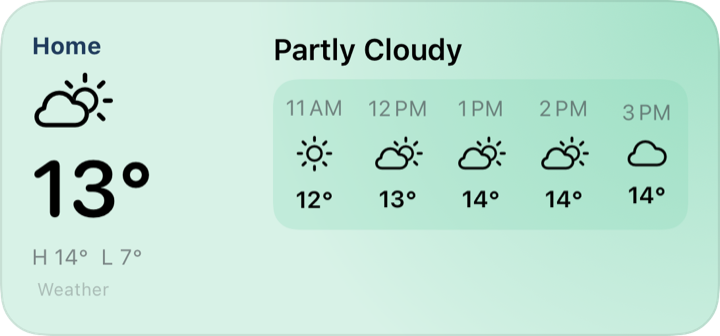
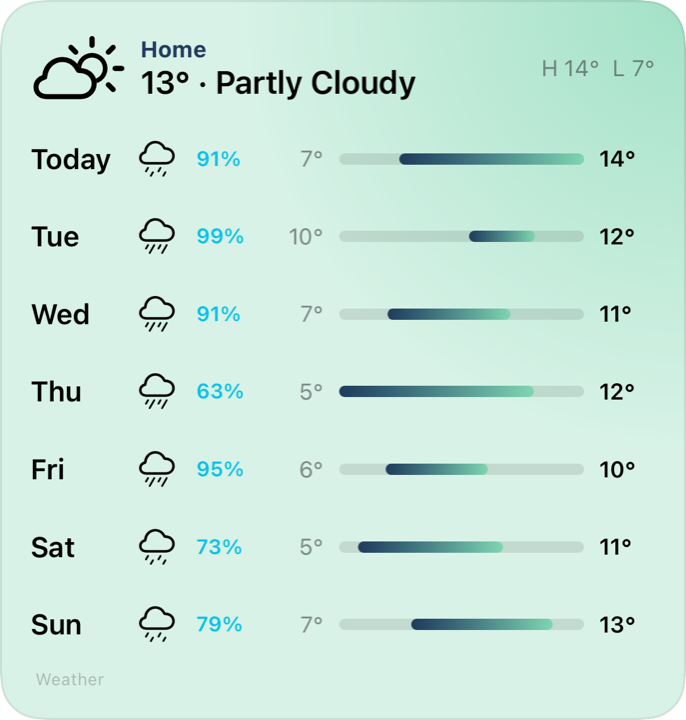
Weather

The weather at home. The medium one adds the next few hours; the large one adds the week ahead with highs, lows and the chance of rain.

The Weather widget, smallThe Weather widget, mediumThe Weather widget, large
Sizes
Small, medium, large
Options
Home. With Settings › Weather set to Home, it's that home's weather, from Apple Weather.

Photos

Photos from the albums you chose in the app (Favorites, Recents, your own or shared albums), a new one every half hour. The photos are copied to the widget on your phone and go nowhere else.

Sizes
Small, medium, large
Options
None here; choose the albums and the order in myYam › Settings › Photos.

Camera

A camera's latest picture. Tap it for live view in the app.

Sizes
Medium, large
Options
Home, and Camera: any of that home's cameras.

More than one home

Every widget except Photos has a Home choice. Leave it empty and the widget follows the home that's open in myYam, or pick one, so a single Home Screen can show your house and a holiday home side by side. With more than one home, each widget shows its home's name. A home's widgets fill in once you've opened that home in the app.

Laundry on the Lock Screen

While the washer or dryer runs, a live countdown sits on the Lock Screen and in the Dynamic Island, and goes when the cycle ends. Turn it off in myYam › Settings › Home › Laundry on the Lock Screen.

The laundry countdown on the Lock Screen

Pictures are from the demo house. Widgets refresh when you open the app and every few minutes after that; buttons work without opening the app.